
See how each video was made.
Every example here is a real video, shown with the photos it was made from, a video direction you can copy, and the steps to make a similar video.
A whole outfit, put on piece by piece.
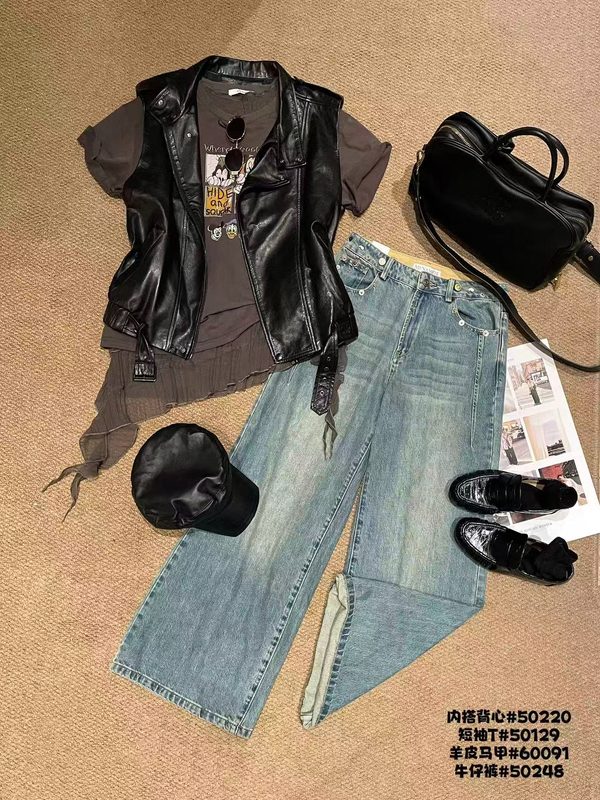
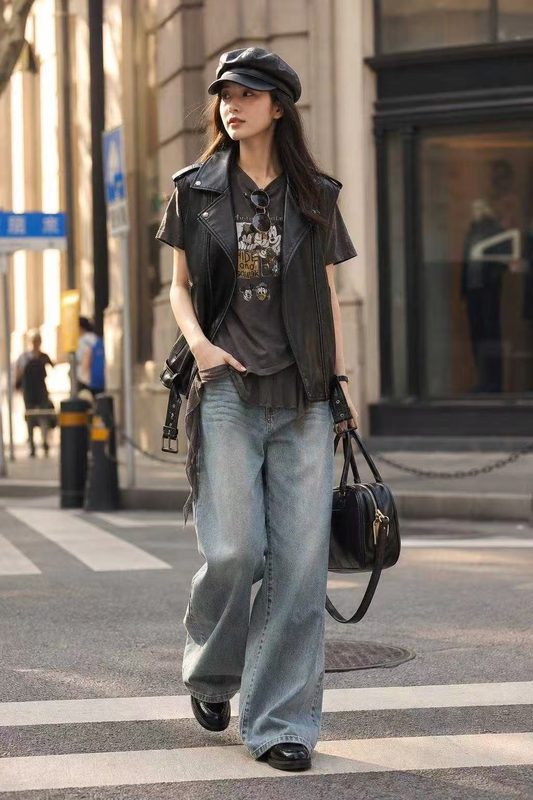
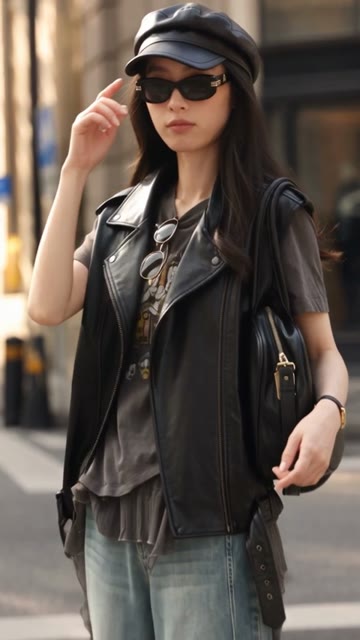
We started with two photos of one outfit. In the 30-second video, a young woman talks to the viewer as she puts on each piece, then walks down a street in the finished look. She speaks Cantonese.
The photos
The settings
- Format
- Talking head
- Duration
- 30s
- Resolution
- 480P
- Audio
- With audio
- Spoken language
- Cantonese
- Tell the director
- Left empty
The video direction
Copy this direction as a starting point, then change everything that isn't true of your product.
-
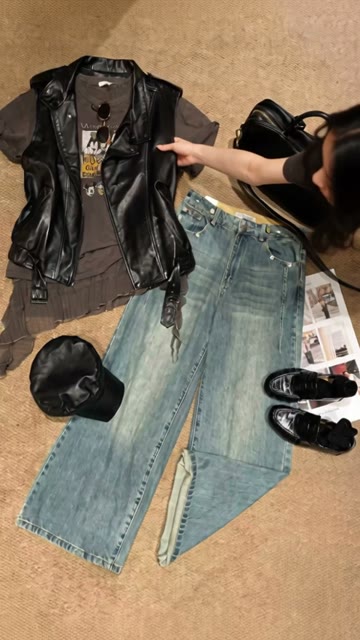
Hook: Creator yanks the glossy black vest off the flat lay and holds it up to the viewer so the silver buckles catch the light, saying she just found the coolest full look of the season.
In the video at 0:01
The woman in the video takes the vest from the laid-out outfit and holds the vest up to the viewer.
-
Creative Premise: One head-to-toe retro-street outfit where every piece — the biker vest, faded graphic tee, wide-leg jeans, cap, bag, sunglasses and loafers — works together so the viewer can buy the whole vibe in one go.
-
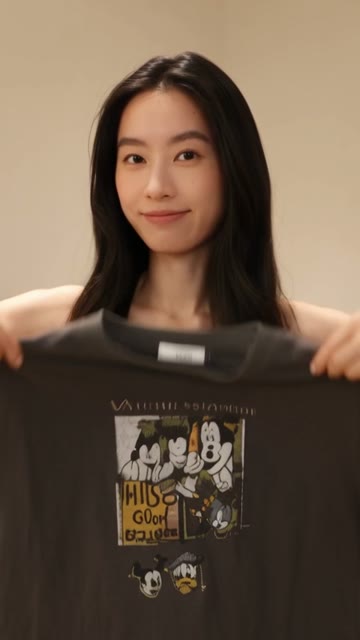
Format: Talking-head creator style, a young Asian woman in her twenties, average height and slim build, speaking straight to the viewer while picking up and layering each piece from the flat lay onto herself.
In the video at 0:06
The woman holds up each piece and talks to the viewer, then puts the piece on.
-
Visual Aesthetic: Warm neutral backdrop, letting the black leather sheen, faded charcoal tee and light-wash denim carry a relaxed vintage street mood with muted earthy tones.
-
Delivery & Takeaway: On-camera voice, conversational, confident and playful, ending with the creator fully styled.
In the video at 0:28
The video ends on a street, with the woman in the finished look from the second photo.
-
Constraints: Refer to the tee only as the vintage cartoon print, never by a character's name.
Steps to make a similar video
-
1
Add your product with two photos like the ones above: every piece of the outfit laid out together, and the outfit being worn. Upload the laid-out photo first: it becomes the product's main picture, and it is the first photo we look at when we write the video direction.
-
2
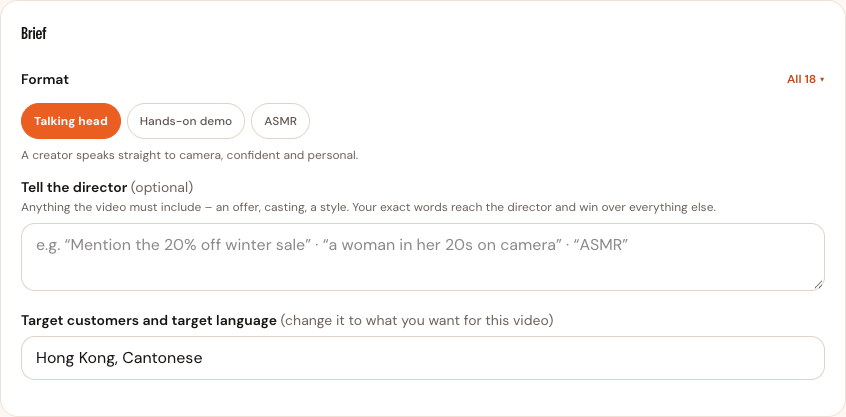
On the “Brief” step, fill in “Target customers and target language” with where your customers are and the language they speak. The example video speaks Cantonese, so the field says “Hong Kong, Cantonese”. The video speaks the language in “Target customers and target language”, not a language named in the direction.
-
3
Under “Format”, choose “Talking head”: from the row, or from “All formats ▾”, which opens every format. We draft a new video direction for that format.
-
4
Under “Video direction”, press “Show full direction”. The whole direction opens as text you can edit, and the button changes to “Show less”.
-
5
Read the direction and edit the text until the direction describes your video: what happens in the first seconds, who is in the video and what they do with each piece, and how the video ends. Change any detail that isn't true of your product. For a different idea altogether, press “Try another angle”.
-
6
Press “Next: generate”. Under “Duration”, choose “30s”, then press “Generate video”. Videos longer than 20 seconds need a paid plan.
The video speaks the language you set for your customers.
“Target customers and target language” is on the “Brief” step, just under “Tell the director”. Write where your customers are and the language they speak, like “US/North America, English” or “Hong Kong, Cantonese”.
- Choosing the video's language
- The video speaks the language you write in “Target customers and target language”. We also use the field when we write the video direction, so the idea suits the people you sell to.
- Keep the language out of the video direction
- Name the language only in “Target customers and target language”. If the video direction asks for a different language, the video may not speak the language you want.
- Your brand keeps the setting
- When you change “Target customers and target language”, your brand's next videos start from the new value too.
- Changing the language after the direction is written
- A message offers to redraft the video direction for the new customers. The video speaks the new language either way, because we read “Target customers and target language” when you press “Generate video”.
Ready to make your next video?
Add a product by pasting a link to its page, or by uploading its photos. For what to change before you generate and what to add when you post, read Tips.