
Making the most out of your video ads.
Every video is made from your photos and your video direction. Here is what you can change before you generate, and what to add once the video is ready.
What the note changes, and what it doesn't.
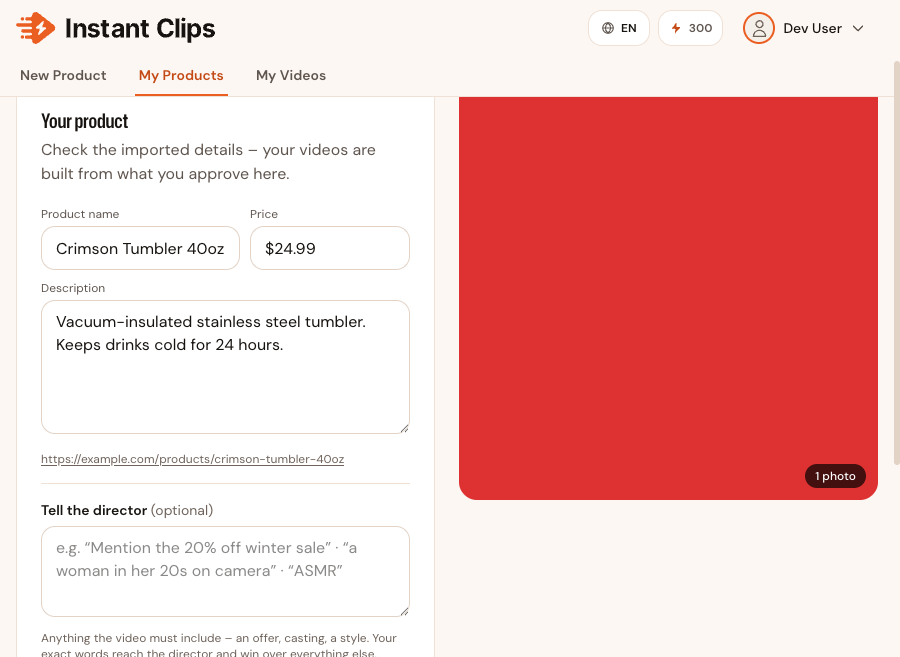
“Tell the director” is on the Product step, and again on the “Brief” step. Your exact words go into the video direction ahead of everything else we decide.
- The note decides these
-
- An offer or a line to say out loud, such as “Use code WELCOME10 for 10% off”. The person in the video says it, in the language you set for your customers.
- Who is in the video: “a woman in her 20s”, “an older man”, “hands only, no face”.
- A format or a style: “ASMR”, “POV”, “unboxing”, “testimonial”.
- The note can't promise these
-
- Text on screen. There is none, so add it when you post.
- The language: the video speaks the language set in “Target customers and target language”, just under the note. Naming a language in the note or in the video direction doesn't change what the video speaks.
- Camera movement, music and pacing. These are decided when the video is made. A wish in the note, like a slow zoom or upbeat music, is passed on and often followed, but it isn't promised the way an offer or a format is.
Choose the length for the idea, not for the product.
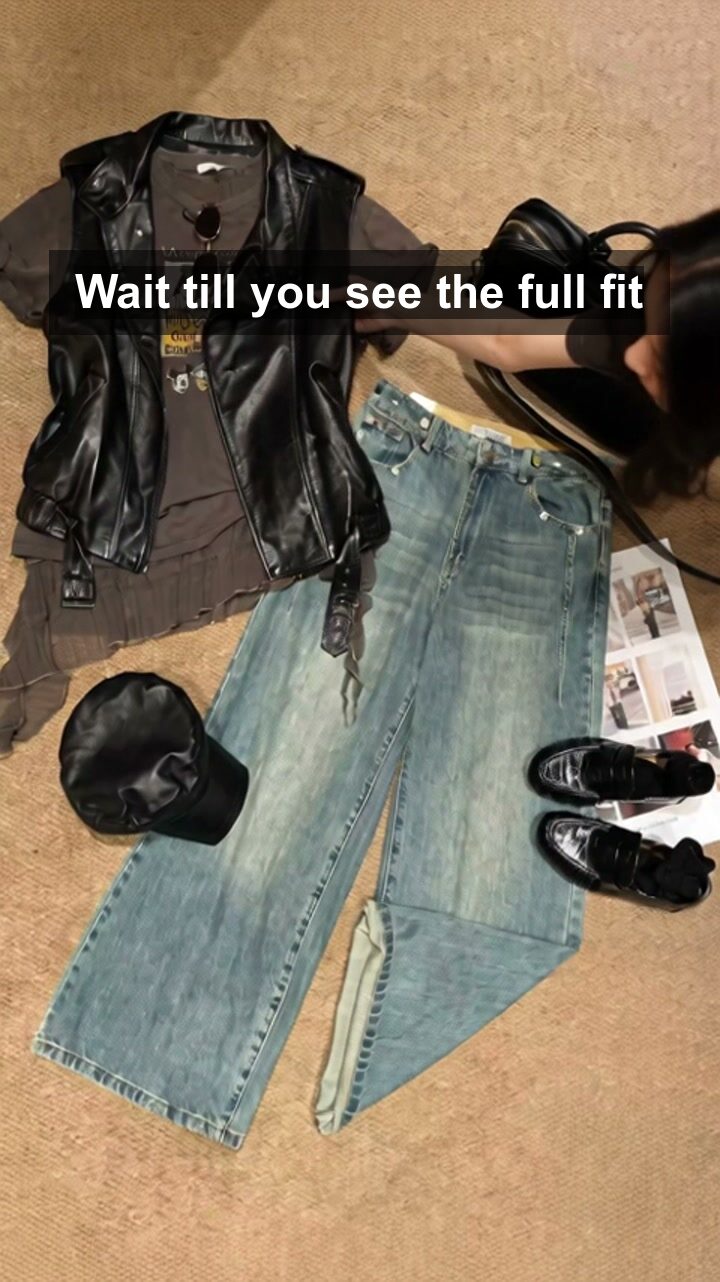
A video can be 15, 20, 25 or 30 seconds long. 15 or 20 seconds fits one idea: the product, one moment of it in use, and the offer. 25 or 30 seconds has room for a setup, two or three details and an ending, which suits an outfit, a routine, or anything with a before and after.
A longer video doesn't show more of the product. It shows the same product with more time on each moment, so choose 30 seconds only when the video direction has that much to say.
Credits are charged by the second. At 480P, a 15-second video uses 225 credits and a 30-second video uses 450. A free account can make videos of up to 20 seconds at 480P; longer videos and higher resolutions come with any purchase.
What to do
Set the length under “Duration” on the Generate step, after you have read the video direction. Cut a moment from the direction, rather than adding seconds, when the direction lists more moments than the length allows.
Describe the print. Don't name the character.
The video model refuses a video that names or shows a famous character, a franchise, a celebrity, a band or a film, even when that character is printed on your product. The video is then marked “Failed”, with this message:
“Blocked for copyright: the video featured a brand, character or artwork that can't be recreated without a licence. Edit the video direction so it describes what's on the product instead of naming it, then try again.”
Your own brand name is fine, and so is the maker of your product or a device it works with. The rule is about characters and famous people, not about brands.
What to do
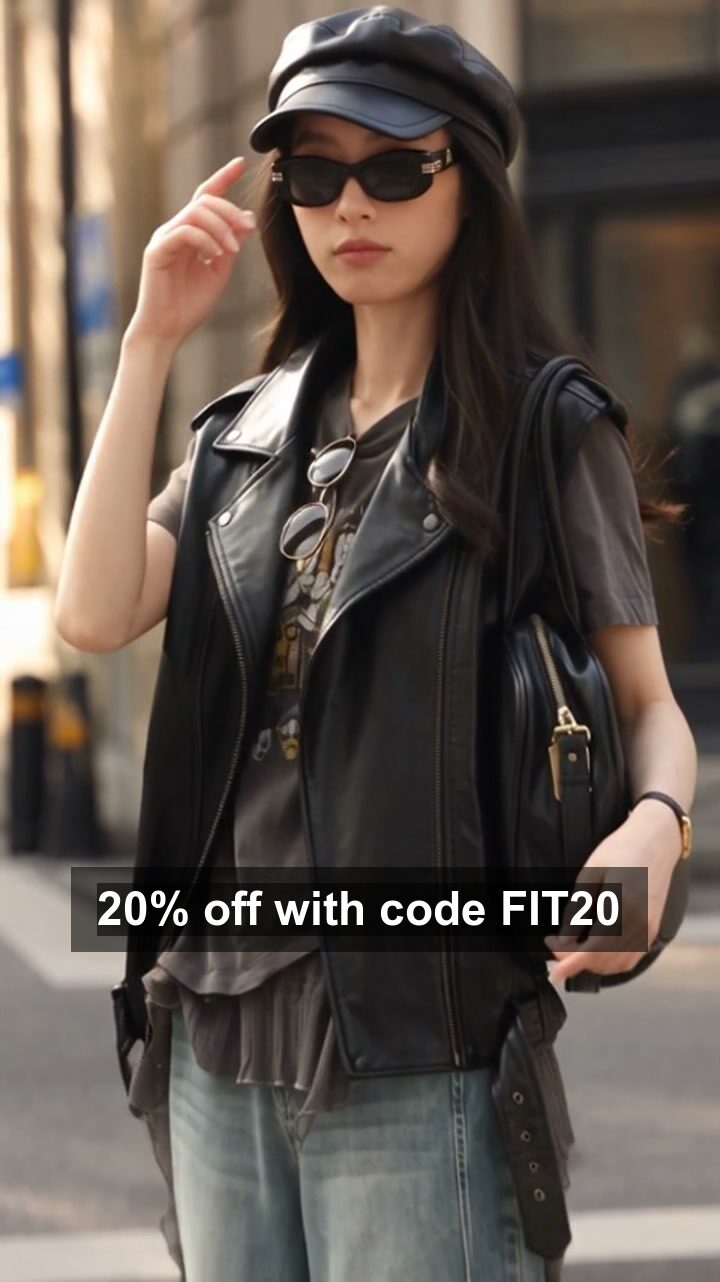
Read the whole video direction before you generate: on the “Brief” step, press “Show full direction” under “Video direction”. Change any words that name a character or a person, so that the words describe what is on the product instead. The outfit example does exactly that: the T-shirt has a cartoon print, and its direction says “Refer to the tee only as the vintage cartoon print”.
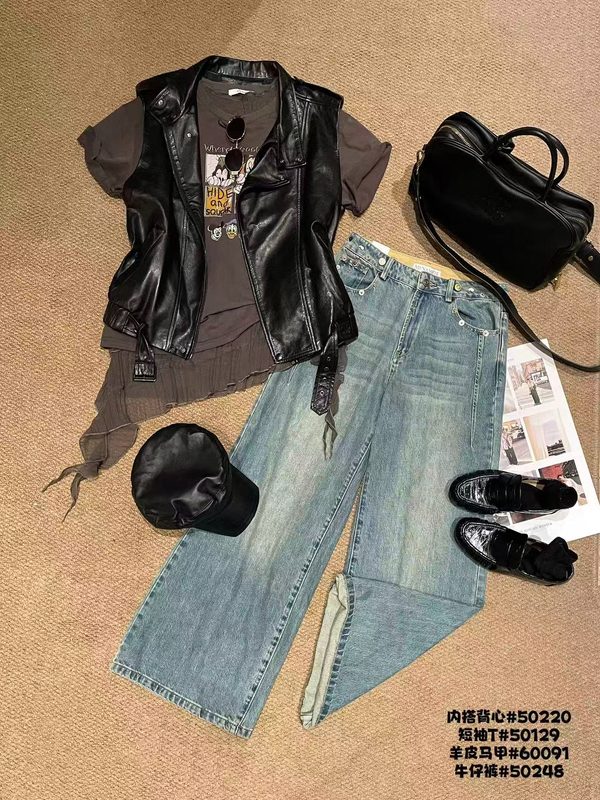
Free videos carry a watermark. Any purchase removes the watermark from every video.
On a free account, every video carries the InstantClips watermark, is made at 480P, and is up to 20 seconds long. The watermarked copy is the one you play, download and share.
Any purchase, from $39, removes the watermark from every video on your account, including the ones you have already made, and unlocks 720P and 1080P. Nothing is made again: the clean copy already exists, and paying switches which one you get.
What to do
Remove the watermark before you download a video you plan to post: press “Remove watermark” on the video, or “Get credits, remove watermark” under your first video.
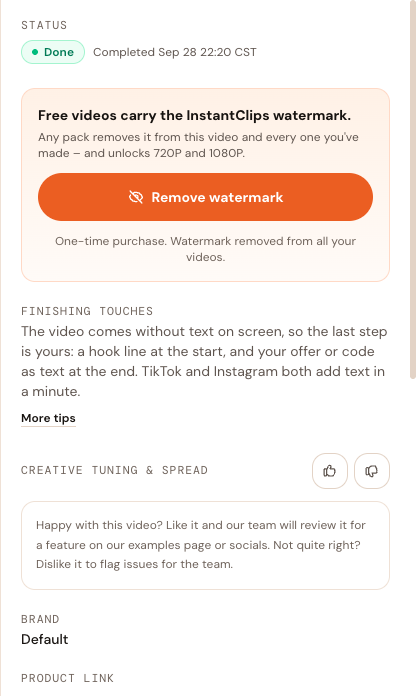
The video comes without text. Add yours when you post.
Every video is delivered without text on screen: no captions, no title, no code, no logo. If you write “Use code WELCOME10” in “Tell the director”, the person in the video says it out loud, and nothing is written on the screen.
That is deliberate. Text added when you post stays sharp, uses the fonts your followers already know, and can be changed at any time without making a new video.
What to do
Post from TikTok or Instagram and use the text tool there. Lay a hook line over the first second or two, and your offer or code as text over the last few seconds. A logo goes on the same way. Each takes about a minute.
Ready to make your next video?
Add a product by pasting a link to its page, or by uploading its photos. For where to post the video and how to run it as an ad, read the playbooks.