
Send the links, get the videos, stay in charge.
You've got the products; you need the videos. Send us the links and we'll make them – short-form content for TikTok and Instagram, from the writing to the plan for every video. All of it stays on screen and yours to change, so the work gets done without getting away from you. New accounts get 300 free credits.
300 free credits · no credit card required
We make the videos
Send a link and the writing, the styling and the plan for the video are handled. Your day goes back to your customers.
Nothing happens off-screen
You see the brand, the details, and the plan for the video before a credit is spent. Nothing is decided where you can't see it.
You're always in charge
Change any line, or just say what the video has to do – an offer, a format, who is in the video. Your words are used as you wrote them.
Watch one video get made
Follow one product page from a pasted link to a finished video in 52 seconds. Then take the five steps below at your own pace.
The recording skips the wait. Your video will usually take 5 to 15 minutes.
Start here
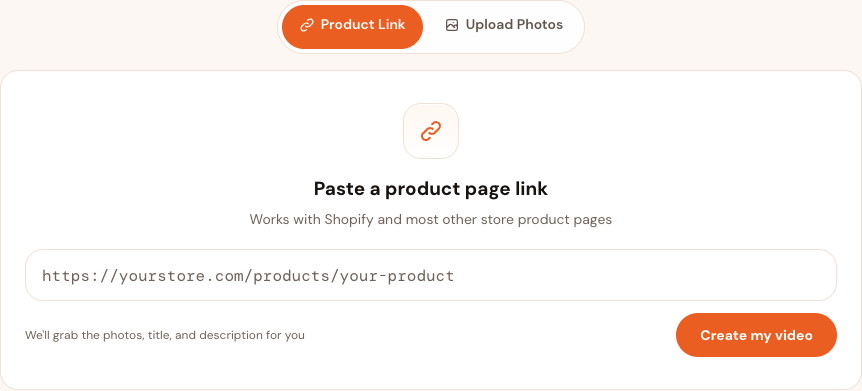
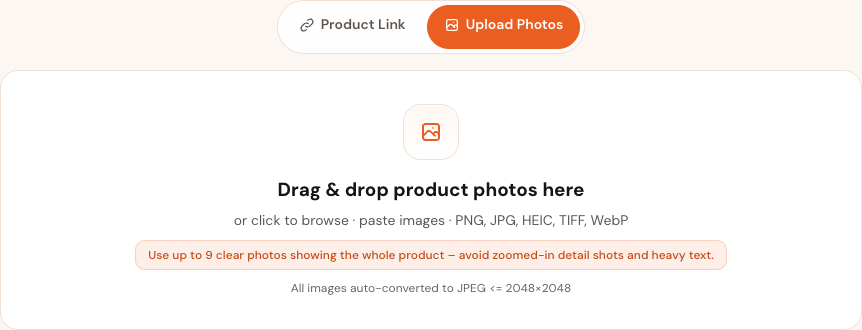
Paste a product link – or upload photos
A store link is the fastest start – we read the page and bring back the photos, title, price, and description. Nothing to retype. No link? Upload photos and type the details yourself; everything after this step is identical.
Paste a product link
Works with Shopify and most other store product pages. Everything we import stays editable in the two steps that follow.
Upload product photos
Drag in several angles of one product. PNG, JPG, HEIC, TIFF, and WebP are supported.
Your brand
Check the brand we read off your store
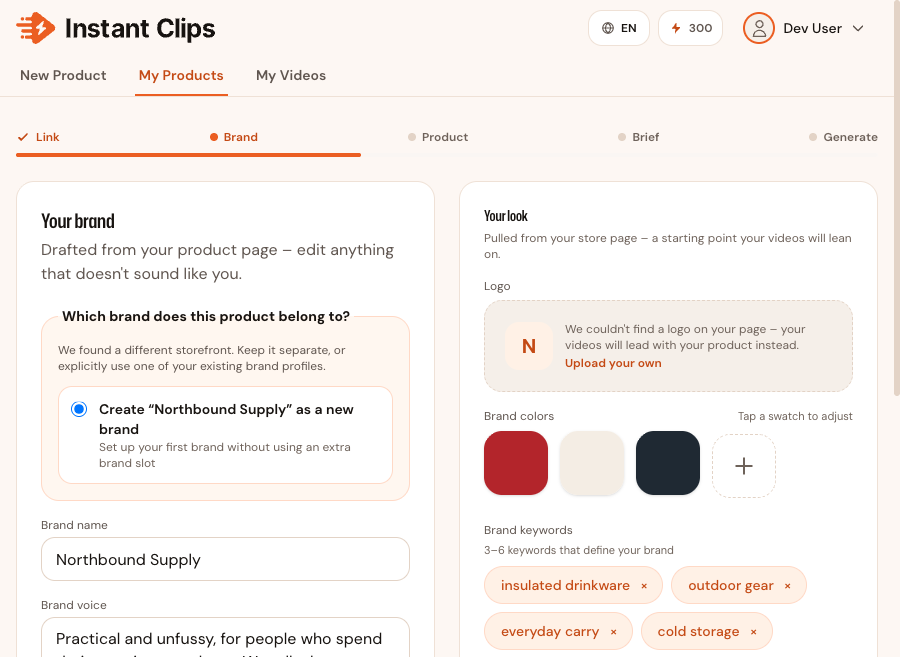
Before a line of script exists, we read your store page and draft your brand: name, voice, logo, colours, keywords. Correct it once – every product under that brand inherits it.
-
Brand name and voice
Drafted from your store. Rewrite the voice if it doesn't sound like you.
-
Logo, colours, and keywords
Also pulled from your store. Upload your own logo, adjust a colour, edit the keywords.
-
Reused, not re-asked
Later imports from the same storefront skip this step. A different storefront gets its own brand – never a silent merge.
A field we can't fill arrives empty and editable, never as an error to clear.
Your product
Confirm the details, then tell the director
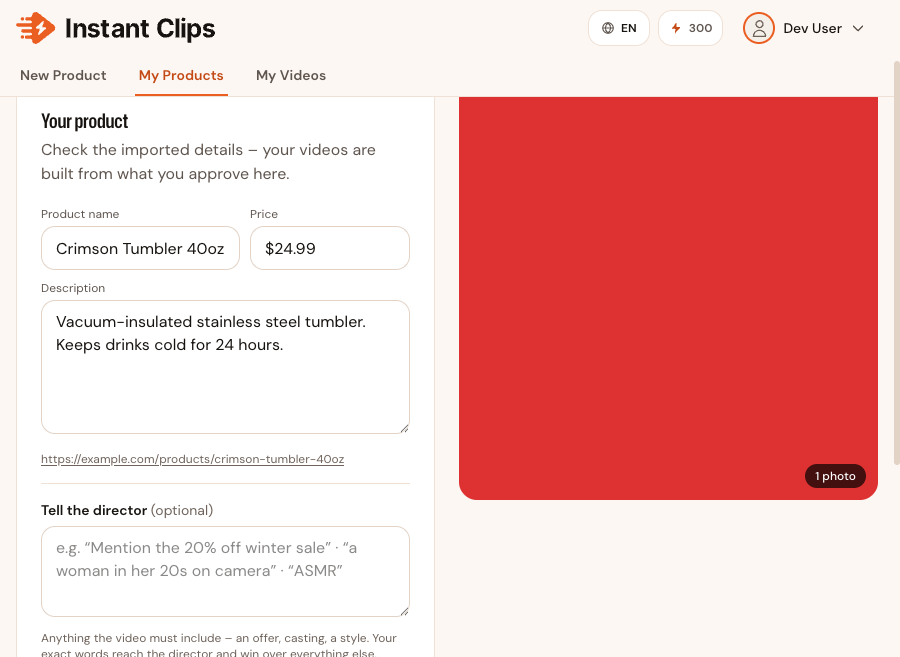
Fix what the import got wrong. Drop photos you don't want in the video. Then use “Tell the director” to say what this video must include – it outranks every choice we make, and is used word for word.
-
Name, price, description
Edit in place; saves as you type. What you approve here is what the video is built from.
-
Photos
Keep the clear photos of the whole product. Remove the rest.
-
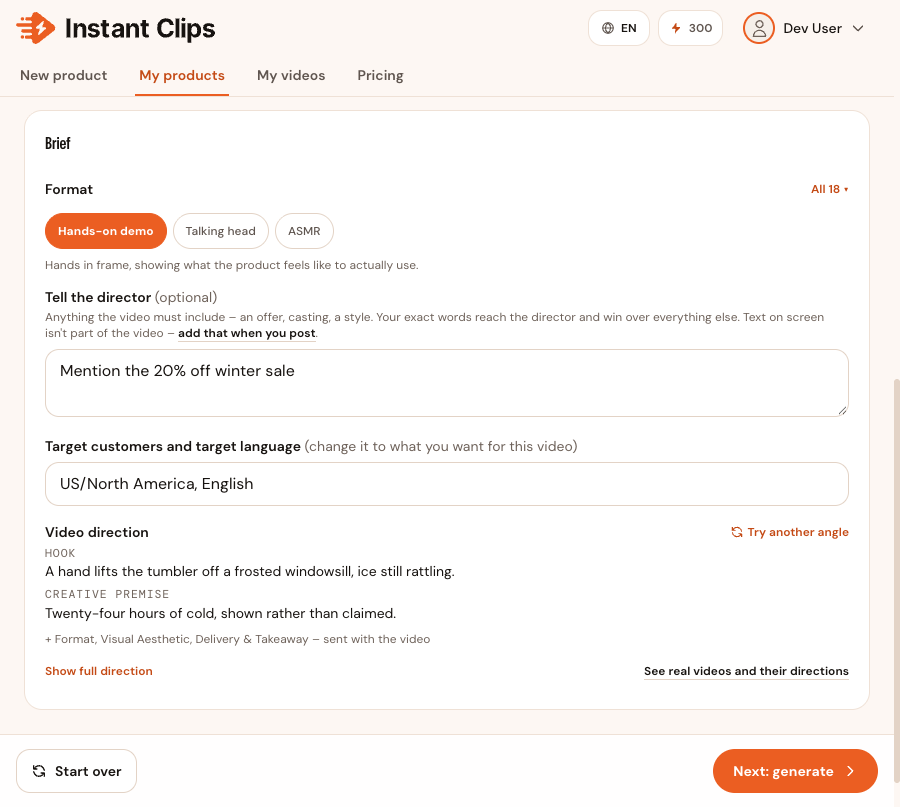
Tell the director (optional)
“Mention the 20% off winter sale” · “hands only, no face” · “ASMR”. One line is usually enough.
Optional means optional – leave it empty and we'll decide that part.
The plan
Read the video's direction, then generate
We draft a plan for every video: the “Video direction”. Review it before you generate: tap “Show full direction” to change anything you want, or tap “Try another angle” for another angle. We draft it from your product, your brand, and your note – starting from one of our top performing formats, never from zero.
See real videos and the directions they came from
-
Video direction
The plan in plain language. “Show full direction” opens the whole plan as text: edit any line, or clear the text and we'll choose.
-
Format
Every draft leans on one of our top performing formats. Name one in your note and the director uses it.
-
Ratio, resolution, audio, audience
The practical settings, including the market and language to speak to.
“Try another angle” never repeats the format you just turned down – and if your note names one, it sticks: re-drafting changes the angle, not the format.
Preview and publish
Play, share, or download the finished MP4
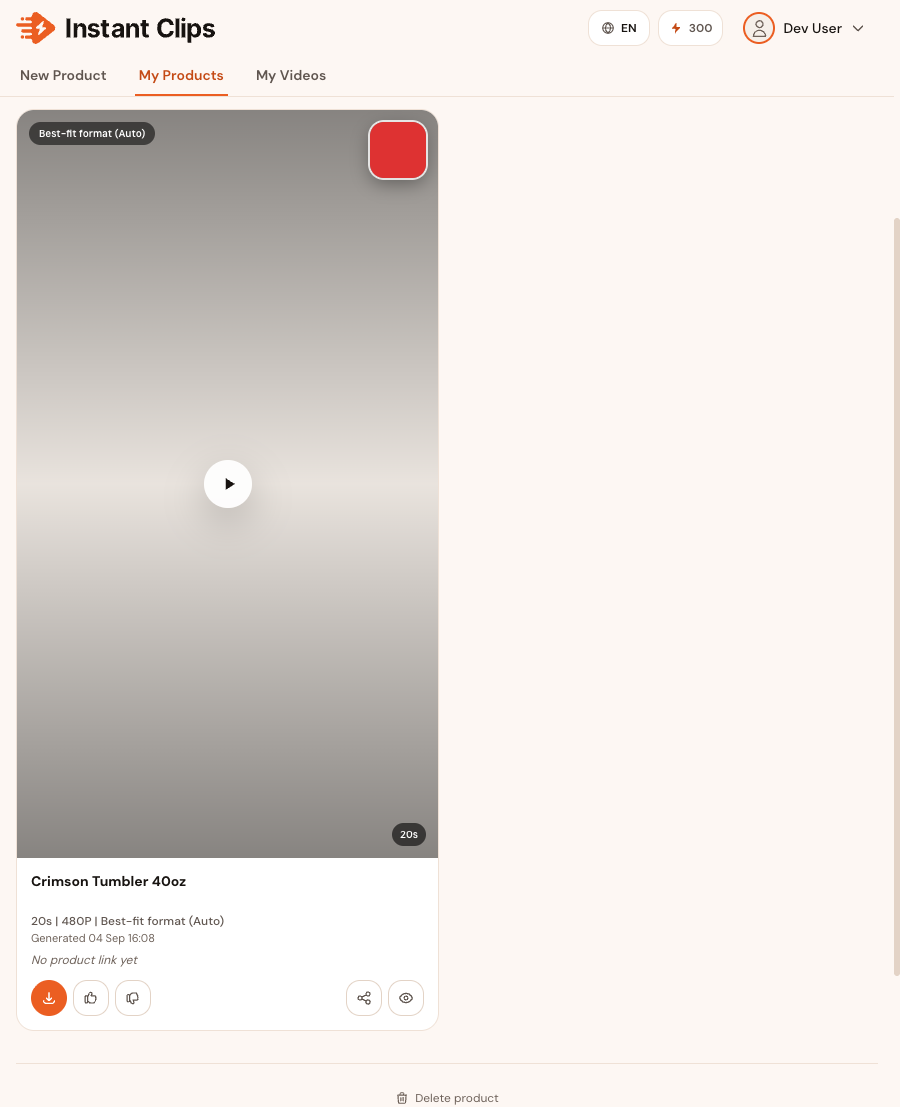
You get a 15–30 second vertical MP4 – short-form content made to post as a TikTok, an Instagram Reel or Story, or to run as a paid ad. Watch it on the page, send a review link to whoever signs off, or download it. Products and videos stay in “My products”, so the next video starts from a brand and a description you've already approved.
-
Play
Watch it before you commit to posting.
-
Share
A link for a client or a teammate to sign off on.
-
Download
The MP4, sized and ready for TikTok.
Not what you pictured? Adjust the direction or the note and generate again – the product stays as it is.
300 free credits · no credit card required